The CRM is the spine of Direct REI. Every contact, conversation, and deal lives here. It has five sub-tabs along the top: Deals, Inventory, Buyers, Sellers, and Other.
Buyers / Sellers / Other
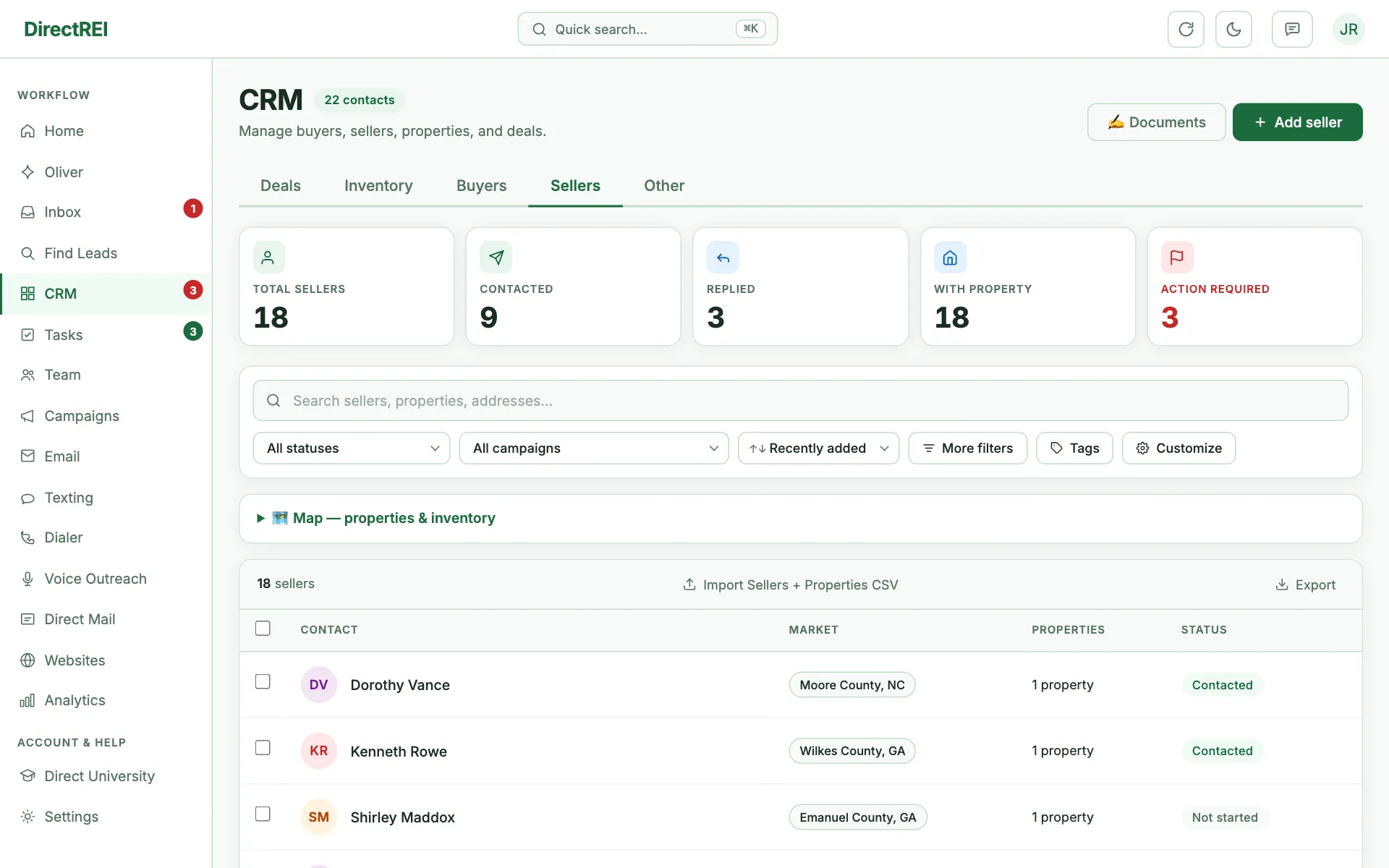
These three tabs are your contact buckets, split by which side of a deal they're on:
- Buyers — people who acquire (builders, flippers, investors, landlords).
- Sellers — people who offload (property owners, wholesalers). The Sellers tab also tracks linked Properties.
- Other — service providers (title companies, attorneys, lenders, government).
Find Leads and CSV import drop contacts into the right bucket automatically based on the type you chose.
Contact status
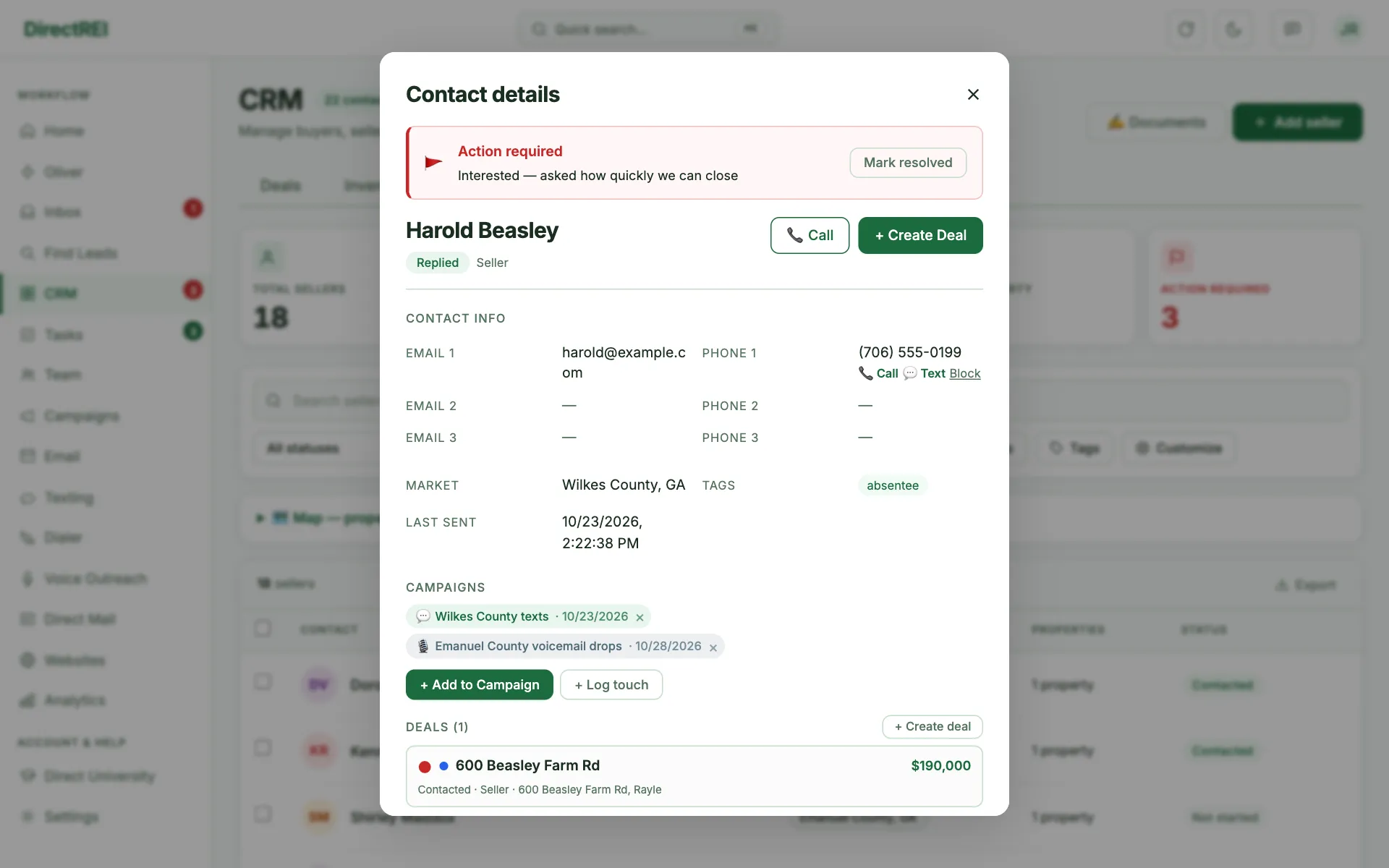
Every contact carries a status that says where they really are: Not started → Contacted → Replied → Interested → Qualified → Active Buyer, plus Follow up later (they asked you to try again another time), Not Interested for dead leads and Bad contact info (every number and email you have for them is marked bad). The system moves it for you: an email, text, mailer, voicemail drop or call — even a voicemail or no answer — moves Not started to Contacted; a reply moves them to Replied; the Dialer's "Interested" button moves them to Interested (and runs your Interested-call automation, set up by default to create a deal) and its "Not interested" button moves them to Not Interested. When the last good number and email on a contact are flagged bad (Bad # in the Dialer, a bounced email) they move to Bad contact info, and back to Contacted when a skip trace or an edit adds one that works. Statuses only move forward on their own — a Qualified lead who replies again stays Qualified. You can set any status by hand anytime, and an automation can set one too (for example: a reply labeled "later" → Follow up later).
Replied, Interested, Qualified, Active Buyer, Follow up later and Not Interested contacts are left out of automated campaign messages. Bad contact info isn't — a new good number found by a skip trace can still be texted right away.
Website and profile links. A contact's card has a Website field and a Profile links box (Facebook, Instagram, LinkedIn, X… one link per line, up to 6). They show as clickable chips on the card, and they help the Personalized Line in your campaigns find the right person.
Tags
Tags are free-form labels you control, and a contact can carry as many as you like. Add them to a whole batch at import or in Find Leads ("Austin-Q1", "absentee"), then filter by one later to work that slice. Use tags for market, list source, or campaign wave.
Clean up tags in one place. Click Tags (next to Customize on the Buyers, Sellers or Other tab) to open Manage tags. It lists every tag with how many contacts carry it, and lets you:
- Rename a tag on every contact at once. Rename it to a tag that already exists and the two are merged — a contact that had both keeps one.
- Merge several tags into one — tick them, then Merge into one…. Tags that look like the same word spelled differently ("mkt-FL" and "mkt fl") are pointed out at the top with a one-click Merge.
- Delete a tag from every contact. The contacts stay — only the tag comes off.
- View the contacts that carry a tag (it opens the CRM filtered to it).
If an automation uses the tag you rename, you're asked whether to update the automation to the new name too. Renaming or merging never sets off "tag added" automations, so a cleanup can't enroll anyone in a campaign. To take a tag off just some contacts, select them and use Remove tag… in the bulk bar.
Filters, search & sort
Each tab has a search box plus Status, Campaign, and Sort filters, with a More filters toggle for the rest (tags, attention, buy-box fields). There's also a Needs attention filter that isolates red-flagged contacts. Bulk-select with the row checkboxes to act on many at once (send, add or remove a tag, skip-trace, check which numbers are mobile with 📱 Line type…, delete).
Import & export
Import CSV takes .csv, .tsv, or .txt — upload, map your columns to Direct REI fields, and save. Export dumps the current list to CSV or Excel.
Tags on an import: add as many as you like. Type tags into Manual tags to put them on every contact in the file, and pick any number of Tag columns from CSV ("Tags", "Tag 1", "Tag 2", "List Name"…). A cell can hold several tags separated by commas, semicolons or | — hot, absentee; wilkes-2026 becomes three tags.
Every import is tagged with its file: 🏷️ Tag this import (on by default) puts one tag naming the file and the day on every contact it brings in — CSV: polk owners (Oct 18). Change the tag in the box if you want a different name. Tick Also tag the people in this file who are already in your CRM and the duplicates the import skips get the tag too, so the tag holds the whole list. After the import, View these contacts opens exactly that list; later, pick the tag in the tab's tag filter (then Select all matching to add them to a campaign, skip trace them and so on), or use it in an automation's conditions. Importing the same file again the same day gets #2. Bulk Migration (Settings → Profile) tags each contact file the same way.
Not sure how to lay the file out? Download a ready-made template for each tab in CSV import template — the best format to upload (Getting Started). The columns in those files map themselves.
Custom fields (paid)
On a paid plan you can add your own contact fields under Settings → Custom fields — useful for tracking anything specific to your business (lot size, ARV, motivation, etc.). They show up in the contact detail and as filter/column options.
The deal pipeline (Deals tab)
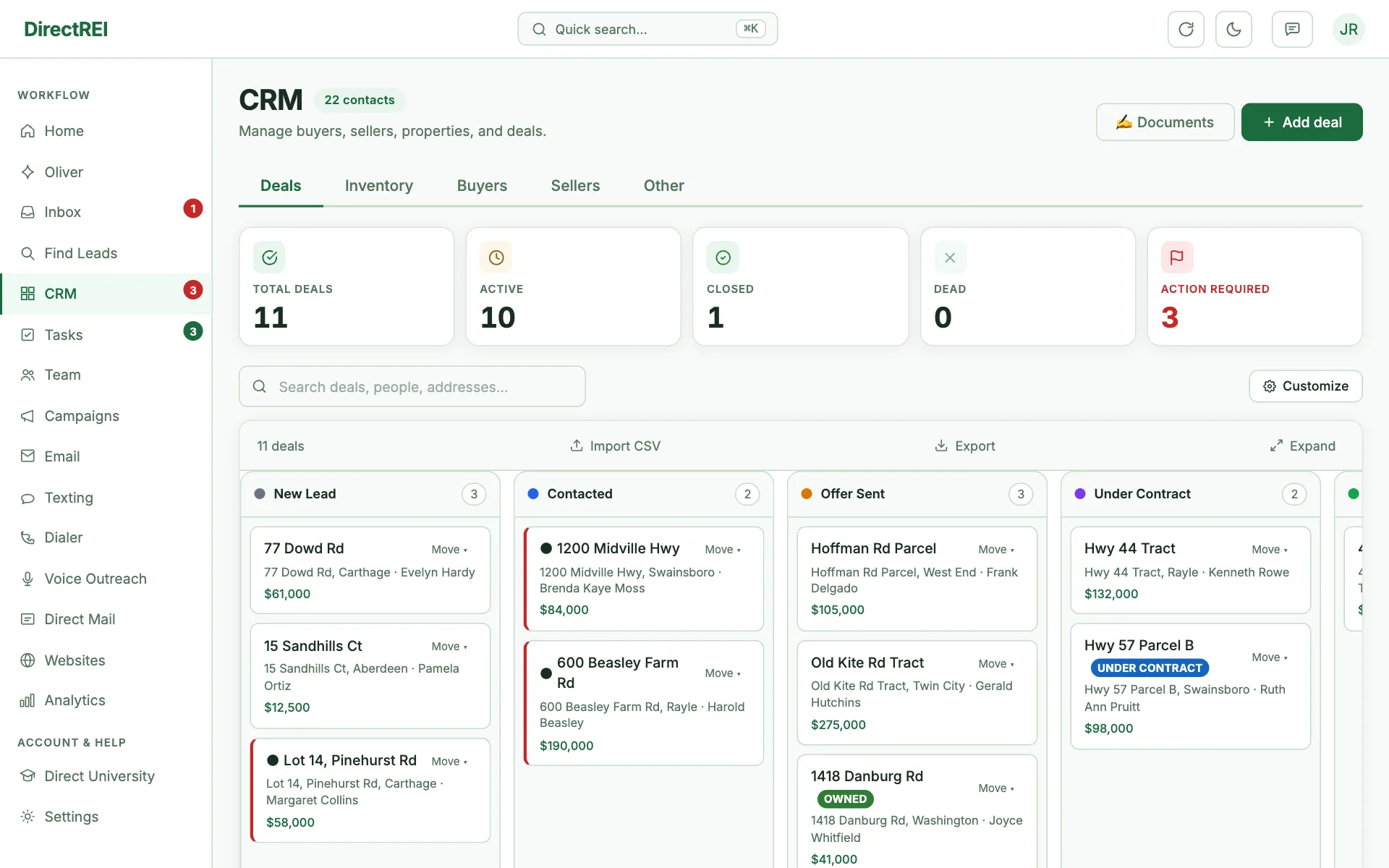
The Deals tab is a Kanban board. Each column is a stage; drag a deal card between columns to move it forward. The default stages are:
- Interested Seller (where new deals land)
- Negotiating
- Under Contract
- At Title
- Closed
- Dead
Stages are fully customizable — rename them, recolor them, add your own, or reorder, using the stage editor on the Deals tab. Each deal links back to its contact and the campaign that produced it, so you can always trace a closing to the outreach that started it.
Start a deal from a contact. Open anyone's card and click + Create deal in its Deals section (or ⋯ More → 🤝 Create deal). A seller is filled in as the seller, with their property when they own just one; a buyer is filled in as the buyer. For an Other contact (agent, lender, title company, partner…) you choose: Create deal with them (they become the deal's main contact) or Add to a new deal's closing team. Save, and the deal lands on the Deals board and on their card.
Won, lost or still active. Win Rate, Active Deals, pipeline value and the map's blue deal pins need to know what each stage means. Each stage in Pipeline Stages has a counts as picker: Won, Lost or Still active. Left on Auto, it goes by the name: "Closed", "Sold" or "Won" count as won, and "Dead" or "Lost" count as lost. Set it yourself for stages the name doesn't explain, like "Deal Fell Through" or "Asking Price too high" (Lost). Oliver can change it too.
Inventory — the properties you're selling
Deals track what you're working. Inventory tracks what you actually hold: the properties you own or have under contract to sell. It's a separate tab because the questions are different — a deal asks "will this close?", inventory asks "what do I have on the shelf, and what am I selling it for?"
Four states, each with its own colour and a clickable KPI at the top of the tab:
- Under Contract — you've tied it up and intend to sell it.
- Owned — it's yours.
- Listed / For Sale — actively marketed.
- Sold — closed out; kept for history.
Three ways in:
- Add to inventory on the Inventory tab — search a property or deal you already have, or create a new one. Pick the state and a list price in the same dialog.
- To inventory on a deal — moves that deal's property across, with a sensible state pre-picked from the deal's stage.
- The Inventory Status dropdown on any property record.
Change the state inline from the list as things progress. Deal cards show a coloured inventory chip when their property is in inventory, so you can see at a glance which pipeline cards are things you already hold.
Two prices, and they mean different things
A property carries an Asking Price and a List Price, and mixing them up will scramble your margins:
- Asking Price — what the seller wants from you. It's on the acquisition side of the form.
- List Price — what you're selling it for. It's in the Inventory section, and it's what you set when you add something to inventory.
Both are available as columns, and your list price is what a Websites listing shows buyers (falling back to the asking price only if you haven't set one). It can also be added to the dialer's focus card.
Send a property to your buyers list
Every property in Inventory (except Sold ones) has a 📣 Send to buyers button. It emails and/or texts the property's details to your buyers in one step:
- Send by — Email, Text, or Both. With Both, a buyer who has an email and a phone gets both.
- Buyers list — all your buyers, buyers with a tag (for example a "VIP" or "Land" tag), or buyers whose market mentions a city, county or state you type. Buyers marked Not Interested, opted-out numbers and addresses, and bounced emails are always left out. Active Buyers, Qualified and Replied buyers are included — they're exactly who a deal is for.
- The message — a ready-made template with fill-ins like
[Address],[Price],[Lot Size],[Beds],[Listing Link]and[First Name]. Click a fill-in to drop it where your cursor is. A line whose fill-ins are all blank for that property is left out, so the same template works for land and houses. The preview shows exactly what a buyer will get. - Save as my default keeps your wording for every property after this one (shared with your team).
[Price] uses your list price, falling back to the asking price. [Listing Link] and [Description] fill in when the property is on a published Websites listing.
Tell your website's subscribers about a new listing
People who sign up for updates on one of your websites (a Get notified block) can hear about new properties too. When you add a property to a live website that has sign-ups, Direct REI offers to Tell subscribers; you can also click 📣 Tell subscribers on any listing in Websites → Properties. It opens the same window with Subscribers of that website picked, and [Listing Link] goes to that website's page for the property. Subscribers are emailed — a subscriber is only texted if they gave a phone number and ticked the texting box when they signed up (turn on Phone number on the Get notified block to ask for one). Nothing goes out until you click Send, and the listing then shows Announced with the date.
You can also ask Oliver — "text my VIP buyers about 12 Oak Ln" or "email all my buyers the Bastrop lot". Oliver shows you the exact message and how many buyers it goes to, and waits for your approval before anything sends.
What's next
Ready to fill it up? Read Finding the right leads with AI research. To put your inventory online for buyers, read Websites: launch a property site that feeds your CRM.