Cold calling is the highest-conversion channel real estate offers — and also the most miserable to do without good tooling. The Direct REI dialer is built to keep you in flow.
Settings → Phone → Get your calls answered. How to do it⭐ Who to call next
Click ✦ Who to call next at the top of the Dialer page: it ranks the 25 leads most worth a call right now, across every campaign: people who replied that they're interested or asked a question, asked for a callback, have an open deal, own out of state, or were never called. A lead you called in the last day, or three times this week without an answer, drops down. Each row says why it's there and has a 📞 Call button. ✦ Prep with Oliver (Pro and Scale) writes talking points for the top of the list.
1. Pick a campaign + load the queue
Go to Dialer. Select a campaign from the dropdown. The queue auto-loads with every contact in that campaign who has a phone number.
The queue is ordered by last-called timestamp ascending — never-called contacts at the top, oldest-called at the bottom. Stale contacts cycle back into rotation after their cooldown.
Get told when a new lead lands (Continuous)
Anyone added to a cold-call campaign shows up in its Dialer queue right away. Tick Continuous under the campaign picker and each new member also gets a high-priority "Call <name>" task, due right now, for the teammate you pick in Assign to — with a push + email reminder, so fresh leads get called while they're warm. Leads with a bad number, who asked not to be called, or with no dialable phone are skipped, and nobody gets a second call task for the same campaign. People already in the campaign don't get tasks when you switch it on.
2. List mode vs Focus mode
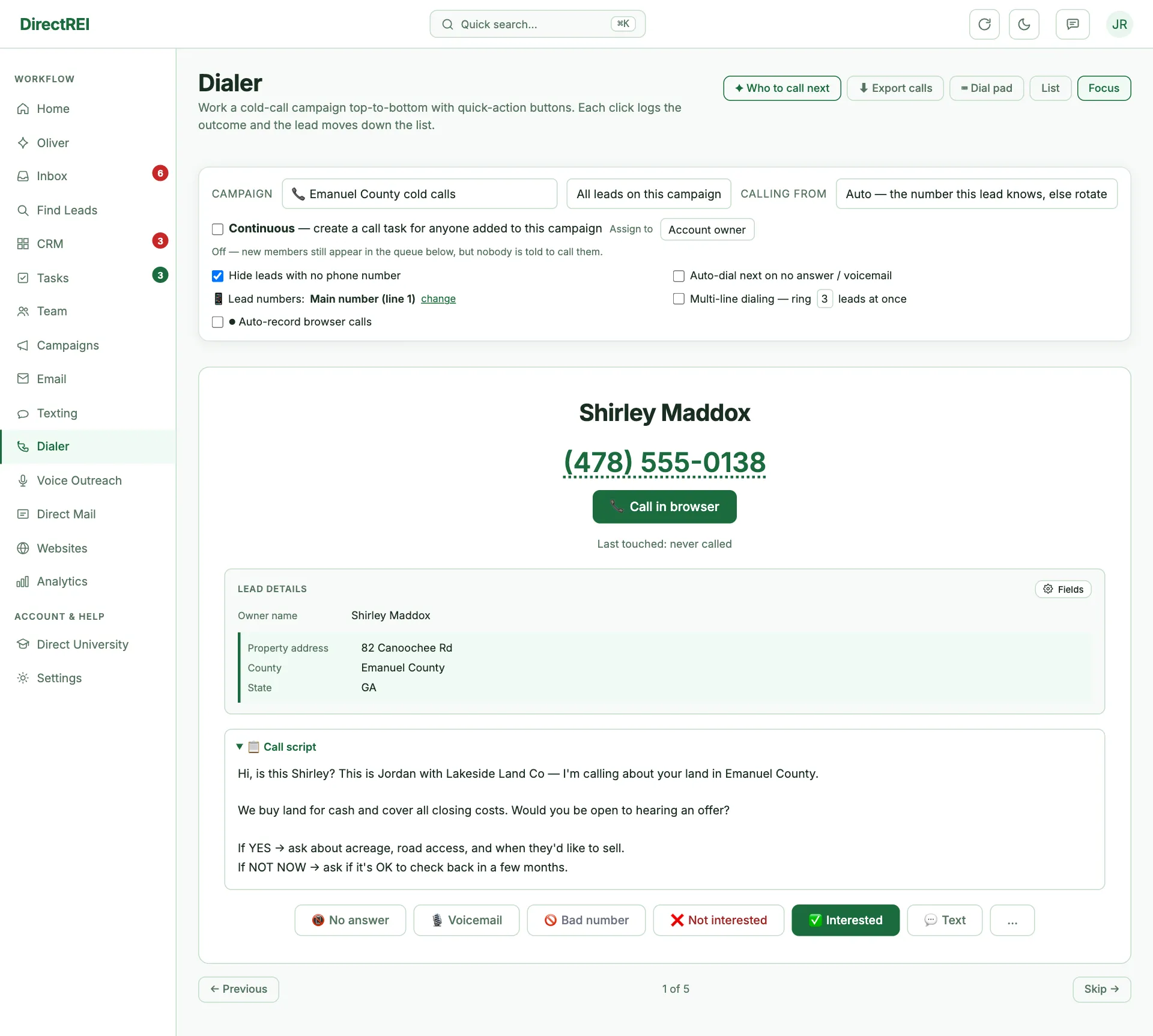
Two views, toggle between them:
- List mode — Table of contacts, see ~10-20 at a time. Good for warming up, picking specific people, or working a short list.
- Focus mode — One contact on screen at a time. Distraction-free. Best for high-volume dialing.
Put the right details on the focus card
Focus mode's card is customizable — click the Fields button on the card and tick what you want under Fields on the focus card. Drag ⋮⋮ to reorder.
Fields come in two kinds, and the difference matters:
- Lead details show once at the top — company, mailing address, market, status, lead type, motivation, email, tags, source, last call.
- Property details repeat for each parcel the lead owns — address, county, state, city, ZIP, parcel ID, property type, acreage, asking price, estimated value, ARV, list price, zoning, legal description.
Out of the box you get owner name, property address, county, and state. Land callers usually add acreage and parcel ID; anyone negotiating live wants asking price and estimated value on screen so they're not tabbing away mid-sentence.
Give your callers a script (optional)
Each cold-call campaign can carry a call script — the talk track your rep or VA reads while dialing. It shows up right on the dialer's focus card (a "📋 Call script" panel above the outcome buttons), so there's nothing to alt-tab to. Add or edit it on the campaign's Edit screen (the "Call script" box — it only appears for cold-call campaigns), or, when you add a cold-call sequence to a group, fill in the "Call script" field in that dialog.
Scripts support the same placeholders as your email/SMS sequences — [First Name], [Last Name], [Full Name], [Company], [Market] — and the dialer fills them in for each lead (with [First Name] falling back to "there" for trusts/LLCs). Like a script? Hit 💾 Save as template and it shows up under "My templates" in the Start from a template dropdown for your next campaign. There's a ready-made "Cold call · wholesaler script" starter to build from.
3. Click Call
Each contact has a 📞 Call button. Where that call actually happens depends on what you picked in Settings → Phone → Calling integration:
- System default — hands the number to your computer's phone app (Mac FaceTime, Windows Phone, etc.).
- Quo — dials through the Quo desktop app.
- In-browser calling — the call happens right in the tab with your headset, and a call bar appears with mute, hold, keypad, and hang-up. This is the one that unlocks recording. See Call from your browser.
With in-browser calling on and more than one number connected, a Calling from picker appears in the dialer's control strip: Auto (the number the lead already knows, else the next number in rotation), Rotate through all, or one specific number. Saved per device. A campaign restricted to some of your numbers narrows the picker to those.
Calling a number that isn't in the queue
Click ⌨ Dial pad in the dialer header for a phone-style keypad. Type or paste any number and hit call — no campaign, no queue, no CRM entry required.
As you type a full number, the dialer checks your CRM: a match shows the contact's name with a link to open their card, and the call logs against them. No match is fine too — it says so plainly and the call still goes through.
Reaching a lead's other numbers
Skip-traced contacts often carry two or three numbers. The primary is what the queue dials, but the others are one click away:
- The focus card shows an Also: line with a 📞 and 💬 for each additional number.
- Contact cards in the CRM show every saved number with its own Call and Text links.
- List rows show a "+N more numbers" hint so you know there are others without cluttering the table.
Which of the lead's numbers the campaign calls
Each cold-call campaign has a Lead numbers setting (edit the campaign, or click change next to "📱 Lead numbers" in the dialer):
- Main number (line 1) — the default. If line 1 is missing or marked as the wrong person, the dialer uses the next good number.
- Line 2 only / Line 3 only — the dialer shows and calls that line; leads without one are left out of the queue.
- All numbers, one after another — when you log No answer, Voicemail or 🚫 Bad #, the dialer stays on this lead and dials their next line before moving on (a paid feature, like auto-advance). Each line is tried once per pass; once they answer, it stops.
🚫 Bad # marks just the number you dialed as the wrong person — the lead's other numbers stay callable, and the lead leaves the queue only once every number is marked. The contact card shows "🚫 Wrong person" next to that number with a Clear link.
Multi-line dialing — ring 2 or 3 leads at once
Most of a cold-calling hour is silence: ringing, voicemail, no answer. Multi-line dialing attacks that directly — it rings multiple leads simultaneously and connects you to whoever picks up first.
Tick Multi-line dialing in the dialer's toggles and choose 2 or 3 lines. It needs Telnyx in-browser calling and is available on Pro and Scale.
How a round plays out:
- You click Call on a lead. They anchor the batch, and the next dialable leads in the queue fill the other lines.
- All of them ring for up to 20 seconds.
- The first to answer is connected to you; the rest hang up immediately and the card expands to whoever won.
- If nobody answers, every lead gets a real No answer logged and the queue rotates — then the next batch starts if auto-advance is on.
Leads whose line you cut aren't re-rung for 10 minutes, so nobody gets hammered by consecutive ghost calls. Backup-number dialing is off while multi-line is on, and clicking one of a lead's alternate numbers always places a single, ordinary call — deliberate targeting shouldn't turn into a batch.
Recording your calls
If you're on in-browser calling, the dialer has an ⏺ Auto-record browser calls toggle. Turned on, every call you place or answer in the browser is recorded (both sides) and the recording lands on the contact's timeline and in the call log. A red ⏺ REC chip on the call bar shows it's live — click it to pause, click again to resume.
It's an account-wide setting only the owner can change, and it mirrors the one in Settings → Phone → Calling integration. Telling the other party is your responsibility — many states and countries require it. Full detail in Call from your browser.
4. After the call, hit a quick-action button
Four outcomes, one click each:
- 📵 No answer — logs the call, marks "no answer", cycles contact to bottom of queue. Auto-advances to next contact in focus mode.
- 🎙️ Voicemail — logs that you left a VM. Same cycling behavior. (If the campaign has an automatic voicemail drop, it plays the message first — see above.)
- ❌ Not interested — contact reached, says no. Logs the outcome so you can filter them out later.
- ✅ Interested — contact reached, wants to talk further. Prompts for a quick note, flips the contact to
replied, and runs your Interested-call automation — which by default builds a deal with the note attached.
Leave a pre-recorded voicemail (📼 Drop VM)
On an in-browser call, when a voicemail picks up, wait for the beep and click 📼 Drop VM in the call bar. Your recorded message plays into the call — the lead hears the recording, not your mic.
On a Telnyx line the dialer moves on right away: the call logs as Voicemail, the message keeps playing in the background, and the next lead is up (or already ringing, with auto-advance on). A small 📼 Leaving voicemail for … chip above the call bar counts the message down; the ✕ ends it early. That call hangs up by itself when the message finishes. On a Twilio line the dialer waits for the message to finish, then logs, hangs up, and moves on — Twilio can't start the next call while one is still open.
- Where the messages come from: the same voicemail recordings you make on the Voice Outreach page (Voicemail Drops tab) — record in the browser or upload an MP3/WAV/M4A. Recording messages is on paid plans.
- Per campaign: edit a cold call campaign and pick its Voicemail drop message. Tick Drop it automatically when I click Voicemail and the 🎙️ Voicemail button does both in one click — plays the message, then logs and moves on. The focus card shows which message will play.
- No campaign message? Click 📼 Drop VM ▾ and pick one — the dialer remembers it on this device for your next calls.
- Someone picked up after all? On a Twilio line, click ✋ Stop drop and your mic comes straight back. On a Telnyx line the dialer has already moved on — call them back from their card.
- Leaving the page while a voicemail is still playing cuts it off (the browser asks first).
- Works on in-browser calling (Telnyx or Twilio). Calls handed off to your phone app or Quo can't play a message — record your voicemail there.
The "Interested → deal" promotion is the killer feature
You hit Interested, type "wants offer on 3 lots in Heights area, send by Friday", click OK. In one action:
- The cold call is logged to the contact's timeline
- The contact's status changes to
replied - A new deal is created in the first stage of your pipeline with that note pre-filled
No copy-paste from CRM to deal pipeline. No "I'll set up that deal record later" that never happens.
Step 3 is an automation, not a hardwired behavior. Every account starts with a rule called "Interested call → create a deal" in Tasks → Automations, and it's yours: change which stage the deal lands in, add a task or a tag alongside it, or delete it entirely if you'd rather create deals by hand. The button tells you which — it only promises a deal when a rule is actually set to build one.
Two things worth knowing about the default rule: it skips a lead who already has an open deal (so calling the same seller three times doesn't leave three duplicate cards — the call still lands on their timeline), and it re-arms once that deal is closed or dead.
5. Auto-advance for high-volume runs
In focus mode, toggle Auto-advance on. After every No Answer or Voicemail outcome, the dialer waits 2 seconds (for the toast to show) then jumps to the next contact automatically. You can dial through 50 contacts in 20 minutes without touching the queue.
6. Track attempts and recycle a list
The queue always puts leads who have never been called first, then the ones called longest ago, so working down it rotates through the whole list.
Above the queue, 📋 List progress shows where the team is in the list: the round it's on, how many leads have been called this round and how many answered, how many still need their first call, and how many tries each lead has had (1, 2, 3, 4, 5+). Click a count to show just those leads — the same choices are in the queue filter under This round.
Every lead in the queue and on the focus card shows its own count, like "3 tries this round · 7 tries in all · Never answered", so you can see who keeps not picking up.
A try is a call outcome you log on the campaign: No answer, Voicemail, Bad #, Not interested, Interested, or a Log touch. Answered means Interested, Not interested, or a "Reached" touch. A call you never log an outcome for doesn't count.
Once everyone has been called, the card says so: "Every lead on this list has been called this round." Click ♻ Recycle list to start the next round. Every lead's tries for the round start over at 0, and anyone taken out for the round comes back into the queue. Nothing is deleted: every call stays on the contact's timeline and the all-time count keeps going. Leads marked Not interested, Bad number or do-not-call stay out. Changed your mind? The message that pops up has an Undo button.
Two optional settings at the bottom of the card apply to everyone calling that campaign:
- Stop calling a lead after N tries this round without an answer — a lead who reaches it leaves the queue until you recycle. Set it to 1 to go through the list exactly once per round.
- Take leads who answered out of the queue until the list is recycled — once someone picks up, they don't come up again this round.
Exporting your call history
Click ⬇ Export calls in the dialer header for your full call log as CSV or Excel — every call, not just the current campaign or the current view.
Columns: date, time, direction, status, duration, contact, contact phone, from, to, campaign, provider, recording link, transcript, and summary.
What people use it for:
- Paying a VA or rep by dials and connects, with the durations to back it up.
- Reviewing calls — sort by duration, open the recording links for the long ones, and coach from real conversations.
- Proving contact history — a dated record of every attempt on a lead, which matters when a dispute comes up.
- Your own analysis — pivot connect rates by hour, by market, by rep.
Inbound calls
Inbound callbacks auto-log to the contact's timeline and flag the lead red with attribution, so you know which mailer or email triggered the call. How the call reaches you depends on your setup:
- Quo — rings your Quo apps; the call, its recording, and its transcript flow here through the call webhook (see Set up SMS with Quo).
- In-browser calling — the call can ring right in your tab, with unanswered calls going to a voicemail greeting you record. See Call from your browser.
Getting hammered by spam callers? Block spam callers & texters covers the block list and the anonymous-caller switch.
What's next
To make sense of who's calling you back from which campaigns: Reading cross-channel attribution. To turn a good call into scheduled follow-up automatically: Automations.