Automations are the difference between a CRM that records what happened and one that makes the next thing happen. A rule watches for an event, optionally checks some conditions, and runs one or more actions — with no one remembering to do it.
They live at Tasks → Automations.
You already have one
Every account starts with a rule called "Interested call → create a deal": when you mark a cold-call lead ✅ Interested in the Dialer, it builds a deal in the first stage of your pipeline with your call note attached. That used to be a hidden, hardwired behavior; it's a normal rule now, so you can change the stage it lands in, add a task or tag alongside it, or delete it if you'd rather create deals by hand.
Flowchart or list
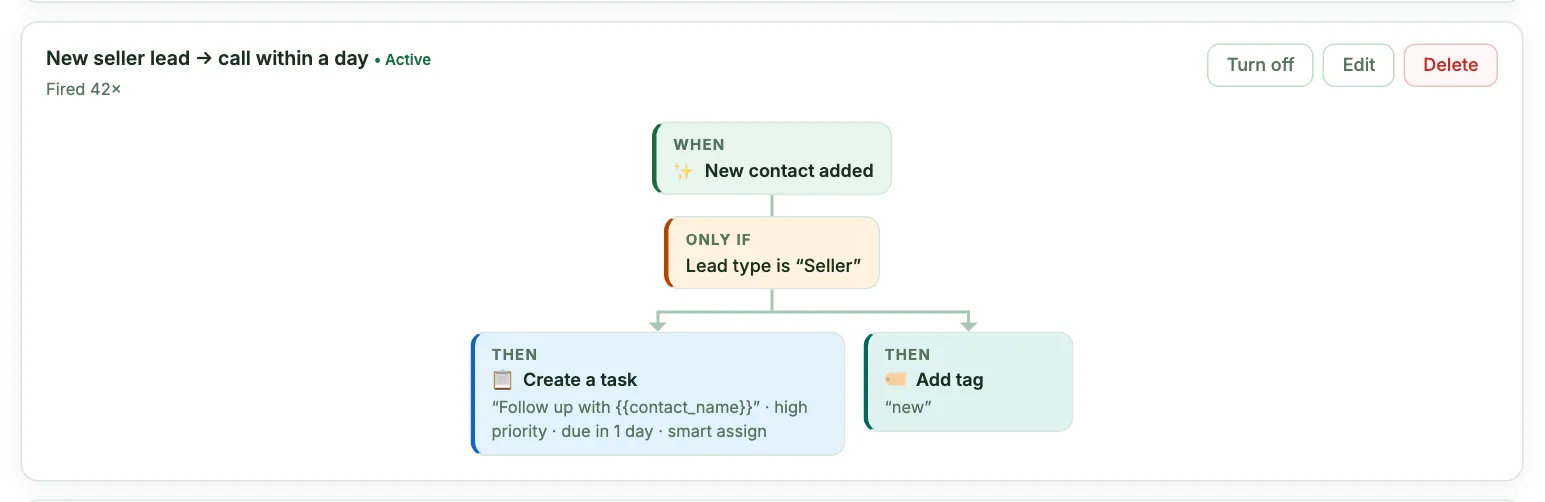
Top-right of the Automations tab is a Flowchart | List toggle. Flowchart (the default) draws every rule as a diagram: a green WHEN node for the trigger, an amber ONLY IF node when the rule is gated by conditions, and one colour-coded THEN node per action. It is the fastest way to audit a rule you wrote three months ago. List view is the compact table if you prefer it.
1. Pick the trigger — "When…"
- A contact's stage changes to… — optionally only from a specific stage.
- A deal's stage changes to… — same, on your deal pipeline.
- A new contact is added — including CSV imports and property-record imports.
- A contact replies — any reply, by email or text.
- A contact's reply says… — you describe what the reply has to say in plain words (“they say they are a realtor or real estate agent”, “they ask for a cash offer”) and the AI reads each email or text reply against it, so “Yes, I'm licensed in Tampa” counts while “Are you a realtor?” doesn't. Pick email, text or both, and optionally one or more campaigns. It fires once per contact — the first time a reply says it — and only on replies that arrive after the rule is on. The classic use: reply says they're a realtor → add the tag
verified realtor. Pro and Scale plans; each reply it reads counts toward your monthly included AI usage, so at 100% it pauses until the 1st. Out-of-office replies and removal requests never trigger it. - A contact's reply is labeled… — the AI already labels every reply (the chips in your Inbox): Interested, Asked a question, Not interested, Wrong person, Maybe later, Asked to be removed. Pick a label and this fires on each new reply that gets it — no extra AI cost. Try Maybe later → create a task due in 30 days, or Wrong person → change the stage and add a tag. A task it creates won't double while one is still open. Replies are labeled on paid plans.
- A call or voicemail says… — the same idea as the reply version, for calls: describe what the person has to say (“they say the property is inherited”) and the AI reads each call or voicemail that has a transcript (Quo calls with transcripts, AI calls, voicemails with transcription on — calls placed through your phone app have none). Fires once per contact. Pro and Scale; each call it reads counts toward your monthly included AI usage.
- A cold-call lead says they're interested — the Dialer's ✅ Interested button, every time you tap it. Unlike the stage triggers it fires even on a lead already marked Replied, and again on a second call.
- A piece of mail is delivered — fires once per recipient, per mailer, when your mail provider reports the piece delivered. Never twice for the same piece.
- A piece of mail is returned to sender — the address was bad or stale and the piece came back. The cleanup trigger: tag it, and put a task on someone to re-find the owner.
- Both mail triggers can be narrowed to certain campaigns or one mailer — see the note below.
- A tag is added to a contact — a specific tag, or any tag.
- A new deal is created
- A task is completed
- No reply for N days — checked once a day, for leads sitting in Contacted (an email, text, mailer or call moves a lead there).
- A property's inventory status changes to… — Under Contract, Owned, Listed / For Sale, or Sold. Optionally only from a specific status. Fires wherever the change comes from: the Inventory tab, a deal card's To Inventory button, or another automation.
- A contract is signed — the moment every signer has finished an e-sign document. Never on a partial signature, and never twice for the same contract.
- A contact clicks a link in a campaign message — the first time a person clicks a tracked link in a campaign email or text (needs Track link clicks on in that campaign — see Link click tracking). Fires once per contact per message; optionally only for certain campaigns, or only for links containing some words (like "zillow" or "property"). Mail scanners and phone link previews never set it off.
- An AI call is classified — when an AI call gets its outcome: Converted, Conversation, Not interested, Wrong person, or No answer. Narrow it to one outcome (and optionally to certain campaigns); the common shape is AI call converted → create a deal. Fires once when the outcome lands, and again only if that outcome is later refined.
- A lead is scored… — fires when the Score the lead action (in another rule) gives a contact a score, optionally only when it is at least or at most a number. The common shape is a lead is scored 80 or higher → create a task for me (or tag them
hot). A rule fired by a score can't score again — that would loop. Pro and Scale. - A website form is filled in — someone sends a form on one of your websites, whether they're new or already in your CRM. Narrow it to one website, one form (your built-in form, a custom form, or the email sign-up), and to only people new to my CRM or only people already in my CRM. "Any form" leaves out email sign-ups. A brand-new visitor also sets off A new contact is added, so to do something only once, pick only people already in my CRM here or add a Source condition to the other rule.
- A buyer pays a deposit on my website — the payment cleared in your own connected Stripe (see Websites → Take deposits). Fires once per deposit; optionally only for one website. The rule acts on the buyer, the property they paid on and that property's open deal — so Set inventory status → Under Contract, Create a deal (it builds the deal around that property, with the buyer on it, or adds the buyer to the deal you already have), Create an e-sign draft and Post in a team chat channel all work on it.
- A buyer starts a deposit on my website — they left their details and headed to checkout, before any money moved. This is the only deposit trigger for a pasted payment link (PayPal, Square), which can't tell us when someone paid.
2. Gate it — "Only if…" (optional)
Conditions are the newest and most useful part. A trigger alone fires for everyone; conditions narrow it to the ones you actually want.
How AND and OR work: conditions live in groups. Everything inside a group must be true (and). Any single group being true is enough (or). So:
(Tag has "hot" AND Market is Houston) OR (Source is Property Records)
Click Add condition to add a row to the current group; once you have one, the button becomes Add "or" group to start an alternative.
What you can check:
- Tag — has / does not have
- Contact stage, Lead type, Source — is / is not
- Market, Contact type — is / contains
- Email / Phone — is present / is missing
- Needs attention, Skip traced — yes / no
- Mailing state, Mailing ZIP
- Deal stage, Deal value — is at least / is at most (only on triggers that carry a deal)
- Lead score — is at least / is at most (1-100). A contact that was never scored never passes.
Other things worth knowing:
- Text matching ignores capitalization — "Hot" matches "hot".
- A blank field counts as "is not" anything, so "Source is not Zillow" passes for a contact with no source at all.
- A deal with no price never passes a value check, either direction.
- Conditions the current trigger can never supply aren't offered — a deal condition won't appear on a contact-only trigger.
3. Choose the actions — "Then do…"
A rule can run several actions in order. Click Add action for each.
- Create a task — title, priority, due-in-days, and an assignment strategy. Titles support
{{contact_name}}and{{deal_name}}. - Assign to a teammate — a task aimed at one specific person, defaulting to High priority.
- Add a tag
- Create a deal — names it after the contact's property address (or the contact), links them as seller or buyer by lead type, and attaches that property. Pick the stage, or leave it on the first stage of your pipeline. Skipped if the contact already has an open deal, so repeat calls never stack duplicate cards; it re-arms once that deal is closed or dead.
- Change contact stage
- Change deal stage
- Enroll in a campaign — sends message 1 now, then the campaign's cadence. Opt-outs, texting consent, and your send settings are all still enforced. Pick Just add them under "When they join" instead and the rule only adds people to the campaign — they start the moment they join if that campaign has ⟳ Continuous on, and wait otherwise, so the campaign's own switch controls it. Cold Call campaigns can be picked too: people land in the Dialer queue, and with Continuous on the caller gets a "Call" task.
- Create a contract draft (e-sign) — builds a prefilled draft from one of your templates, auto-filled from the deal, property, and seller. It appears in Documents for you to review and send. Free until you actually send it. A template with several signer roles (Seller, Buyer, Title…) maps each role to a person: the contact the rule fired for, the deal's seller, the deal's buyer, a specific contact (your title rep, say), or you. Turn on Send automatically and it goes out with no review step — see below.
- List the property on a website — adds it to one of your hosted sites' listings. On a published site it appears within about five minutes with no re-publish; on a draft it waits there until you publish. A property that's already listed is skipped, so a rule that fires twice never duplicates a listing.
- Set inventory status — moves the property to Under Contract, Owned, Listed / For Sale, Sold, or out of Inventory entirely. Under Contract shows PENDING on your website and hides its deposit button.
- Send them an email or text — emails or texts the contact the rule fired for, in your own words, within about a minute: from one of your connected mailboxes, or one of your texting numbers. It isn't a campaign, so it reaches people you've already talked to (Replied, Interested, Qualified). It still never goes to someone who opted out, whose email bounced, or whose number is flagged as a litigator, and texts need your texting consent attestation (Settings → Phone). With "Only send during my send hours" ticked (the default), they wait for your send hours in Settings → Schedule — and texts never go out before 8 AM or after 9 PM in their time zone (8 PM in Florida and Oklahoma), even if you send around the clock. Untick it to send right away, any time. Emails can carry your footer or not. Fill-ins:
[First Name],[Address],[City],[Deposit Amount],[Listing Link],[Your Name]and the rest — the property ones are the property the event is about (a deposit's listing), else their own property, and a blank one becomes nothing or its backup words ([Address|the property]). Want both? Add two of these actions, one email and one text. The message shows in their conversation; when you edit the rule, each action says how many it sent and why any weren't. - Email a teammate — an internal email to a team member's login email (yourself included, on a solo account) when the rule fires. Write a subject and message —
{{contact_name}}and{{deal_name}}work, and the contact/deal names are appended automatically. Sent from one of your connected mailboxes within about 15 minutes. Several triggers in the same window arrive as one digest email, so a 500-row import with an "email me" rule produces one message listing the events — never 500 emails. - Post in a team chat channel — writes a message into one of your Team Chat channels when the rule fires. Left blank, the built-in line reads like "🤝 New deal: 12 Oak Ln — Seller: Jane Doe · Athens, Henderson County TX · PID 1234-56" with clickable chips for the deal, the contact and the property (the county and PID come from the property record — the one the event is about, else the deal's, else the contact's). Or write your own with
{{contact_name}},{{deal_name}},{{property_address}},{{city}},{{county}},{{state}},{{pid}},{{rule_name}}and{{note}}. Tick Also show on the post to add numbers like the offer price, EMV, contract price, ARV, asking price, lot size, deal stage, closing date or phone — they're read from the deal, property and contact every time the chat shows the post, so editing the offer or adding the EMV later updates the post (posts the rule already made included; a value not filled in yet shows as "—"). The name, address and PID on the post follow the records the same way. The post shows as Automation · rule name; only the account owner can delete it. Bursts collapse: everything one rule posts to a channel within two minutes lands as extra lines on a single message, so an import of 500 leads is one message listing them, never 500 posts. Team Chat is Pro/Scale. - Fill in their details (AI) — the AI reads what the contact said (the reply or call that set the rule off, plus their recent replies and latest call) and fills the fields their card shows: company, title and market; for sellers their motivation, reason for selling and the asking price on their property (when they own one); for buyers the buy box; plus your own custom fields. It only uses what they actually said, leaves fields that already have a value alone unless you untick Only fill fields that are empty, and adds a note listing what it filled. Pairs well with A contact replies or the reply triggers above. Pro and Scale; each read counts toward your monthly included AI usage.
- Draft a reply for me (AI) — the AI writes a reply to their latest email or text and leaves it in Drafts for you to approve — even when AI replies are off for them, and even on a campaign set to send replies by itself. Try a reply is labeled “Asked a question” → draft a reply. It's skipped when they opted out on that channel, are marked Not interested, asked to be removed, sent an automatic out-of-office, or you already answered. Each draft uses one AI reply from your plan (then credits); not on the Free plan.
- Create a task at the time they asked for (AI) — the AI reads what they said (“call me Thursday at 3”, “try me next week”, “not until October”) and creates a task due then, in your account's time zone, with the usual push + email reminder. Leave the title blank and it names the task after what they asked for (“Call them — Jane Doe”). If they didn't name a time, it either creates the task due in a few days or skips it — your choice. Pairs well with a reply is labeled “Maybe later”. Pro and Scale.
- Score the lead (AI) — a score from 1 to 100 with a one-line reason, from their replies, calls and what's on their card. It shows as a 🎯 chip on their contact card (hover it for the reason) and fires A lead is scored… rules, so other rules can route on it. It needs at least one reply or call to read. Pro and Scale.
- Summarize the conversation (AI) — a short summary of everything said (who they are, the property, what they want, any price or timeline, the next step), written onto the deal's notes, the contact's notes, or posted in a Team Chat channel. On the deal it uses the deal the event is about, else their open deal, else the contact's notes. The classic: a deal moves to Under Contract → summarize the conversation onto the deal. Pro and Scale.
Send the contract automatically (optional)
On the Create a contract draft (e-sign) action, tick Send automatically — no review step. Now a rule like "a deal's stage changes to Under Contract → create the purchase agreement" also sends it: the contract is created, sent, and each signer gets their signing link — nobody has to open the app.
- Pick how each signer gets their link — Text, Email, Text + email, or Whatever they have on file (the default: everything they can be reached on). Texts go from your connected numbers, emails from your connected mailboxes, and both land on the contact's timeline. Optionally write the message —
[First Name],[Full Name],[Document Name]and[Signing Link]fill in. If you sign a role yourself, your link arrives in the email that tells you it was sent. - Same price as sending by hand — each send uses one of your plan's included documents, else $0.89 from your credit balance.
- Sent once per deal for that template. A deal that leaves Under Contract and comes back, or two rules that both fire, never send it twice.
- Texts follow the same rules as campaign texts — opt-outs (STOP), your texting consent attestation, bad-number and TCPA-litigator flags, and your texting hours (outside them, the send waits until they open). Numbers on a Do-Not-Call list are also never auto-texted.
- When it can't send safely it stays a draft. If the template isn't finished, a signer can't be reached the way you picked, a role has no person (no seller linked to the deal, say), or you're short on credits, the contract is left as a prefilled draft, the deal (or contact) is flagged for attention with the reason, and you're emailed. Nothing is charged for a draft.
- You're told every time. The account owner — and the rule's assignee, if it has a task for a specific teammate — get an email with a link straight to the deal the contract belongs to. CRM → ✍️ Documents also lists the last week's automatic sends and any that need a look.
- A daily limit guards against a runaway rule — by default at most 10 automatic contract sends in any 24 hours (then they stay drafts). The account owner can change it from the action (0 turns automatic sending off for the whole account).
4. Watch the live preview
As you build, the diagram at the top of the dialog redraws with every change — so you can see the finished rule before you save it. If an action can't work with the trigger you picked (setting a deal stage from a contact trigger, for instance), the preview says so instead of letting you save something that silently never runs.
Rules that keep automations safe
- They don't cascade. If a rule changes a stage or adds a tag, that change does not set off your other rules. This is deliberate — it makes infinite loops impossible. The flowchart marks those spots with a muted ⊘ chip so you can see where a chain stops.
- One exception, on purpose: Enroll in a campaign can lead somewhere — if that outreach gets a reply, the reply flips the contact to Replied, which will fire your "A contact replies" rules.
- Completing an automation-created task never fires a "task is completed" rule — otherwise every rule would feed itself.
- A deal built by Create a deal doesn't fire your "A new deal is created" rules, for the same reason. Put both actions on the one rule instead of chaining them.
- One open task per rule per contact. A rule won't stack duplicate open tasks on the same contact for the same event.
- Setting an inventory status doesn't fire your inventory rules, same protection as every other status write. If you want "signed → mark it Owned → put it on the site", put all three on the one rule rather than chaining two.
Eight rules worth stealing
- Never drop a hot reply. When a contact replies → only if Tag has "hot" → create a task "Call {{contact_name}} today", Urgent, due in 0 days.
- Work new county imports. When a new contact is added → only if Source is your import source AND Phone is present → enroll in your SMS campaign.
- Paper the win. When a deal's stage changes to Under Contract → create a contract draft from your purchase-agreement template, and assign a task to whoever handles closings. Tick Send automatically and the seller has the contract on their phone before you've hung up.
- Call the mailer while it's on the counter. When a piece of mail is delivered → only if Phone is present → create a task "Call {{contact_name}} — mailer just landed", due in 0 days. This is the whole point of tracked delivery: reach them the day the postcard shows up, not two weeks later.
- Put it on the website the moment it's yours. When a property's inventory status changes to Listed / For Sale → list the property on your listing site. Your public site stops being something you remember to update.
- Paper trail to storefront. When a contract is signed → set inventory status to Under Contract, list the property on your site, and create a task "Order photos for {{contact_name}}". One rule takes a signed deal all the way to a live listing.
- Thank the buyer and mark it Pending. When a buyer pays a deposit on my website → send them an email ("We got your [Deposit Amount] deposit on [Address]"), send them a text, and set inventory status to Under Contract so the listing shows PENDING.
- Quarantine bad addresses. When a piece of mail is returned to sender → add tag "bad address", and create a task "Re-find a mailing address for {{contact_name}}". Then filter the CRM by that tag before your next mailer so you stop paying postage on addresses you already know are dead.
Turning a rule off
Each rule has an Active toggle — flip it off rather than deleting, so you keep the definition and can turn it back on. Deleting a rule never touches the tasks it already created.
What's next
To see the work these rules produce: Tasks. To have an AI build and run multi-step plans instead of fixed rules: Oliver, your AI acquisition manager.