The single biggest factor in cold-outreach deliverability is sender reputation. Connect your mailbox correctly, pace correctly, and you stay out of the spam folder.
1. Turn on 2-Step Verification first (the part everyone misses)
App passwords only exist once 2-Step Verification is on. And Google no longer lists App Passwords anywhere in the Security menu, even after 2-Step is on — step 2 below uses the direct link. So: 2-Step first, then the link.
- Gmail:
myaccount.google.com→ Security → 2-Step Verification → Turn on (it confirms via your phone). ~2 minutes. - Outlook:
account.microsoft.com→ Security → Two-step verification → Turn on. - Yahoo / iCloud / others: similar, under Security or Sign-In options.
2. Create an app password — NOT your normal password
An app password is a 16-character code scoped to one app and revocable anytime; Direct REI uses it instead of your real password.
- Open
myaccount.google.com/apppasswordsin your browser (that's "app" + "passwords" — three p's in a row). Re-enter your Google password if prompted. - Type a name like Direct REI and click Create. (There's no "Mail / device" dropdown anymore — just the name box.)
- Copy the 16-character code it shows (4 groups of 4). Google only shows it once.
Outlook: account.microsoft.com → Security → Advanced security options → App passwords → Create.
3. Add the mailbox in Direct REI
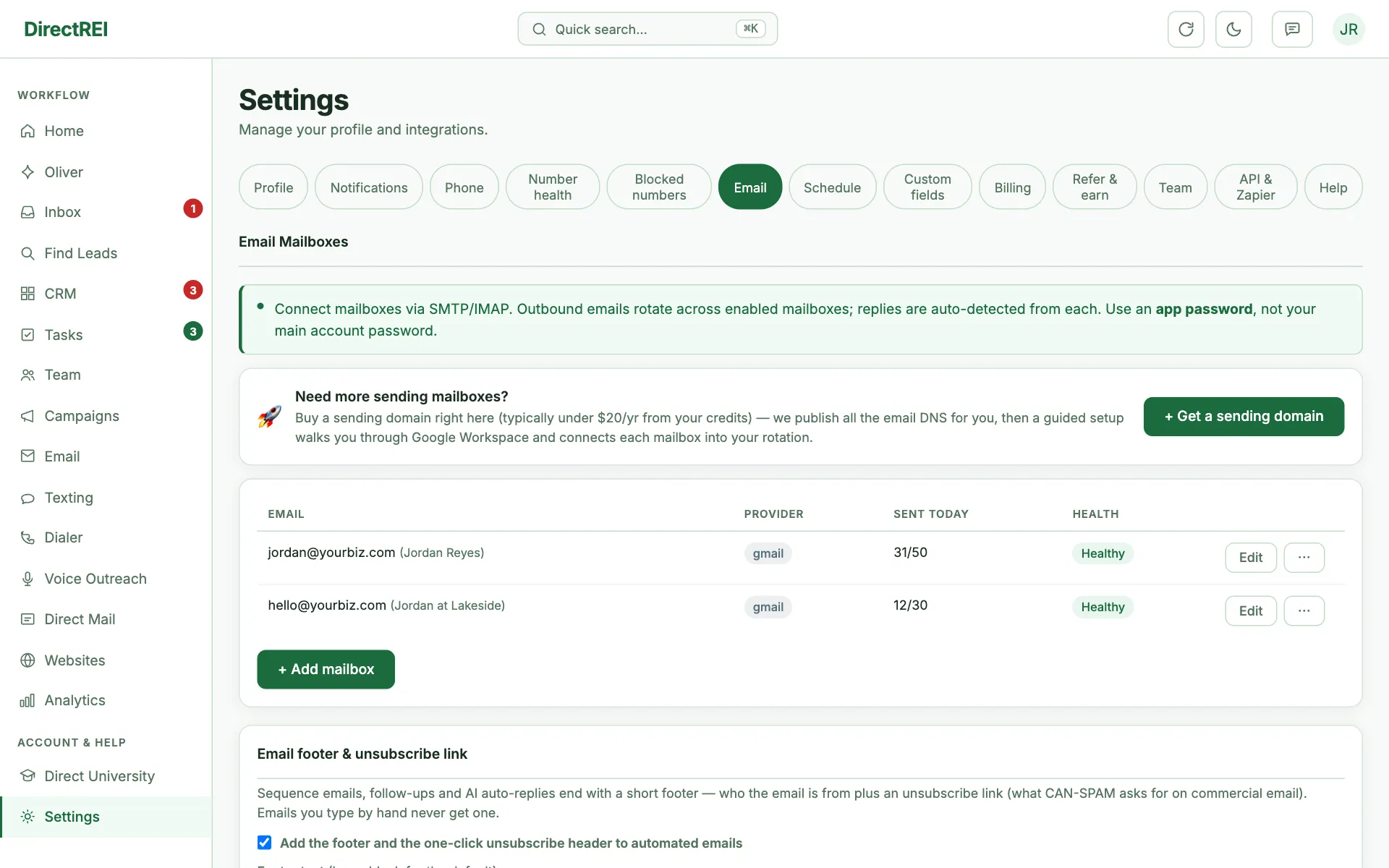
Two ways in: a brand-new account shows a Connect mailbox prompt on the Home page, or go to Settings → Email → + Add a mailbox anytime. Pick your provider preset (Gmail/Outlook auto-fill the servers), then fill in:
- Email address — your full address; it fills in both usernames for you as you type.
- Password — paste the 16-character app password from step 2 (not your Google password) into either password box; the other one fills in too. The boxes you still need to fill are tinted yellow. If your provider uses a different username or password for reading replies, just type over the filled-in one.
- Display Name (optional) — the sender name recipients see in their inbox (e.g. your first name or your company). When it is set it wins; leave it blank to default to your profile's Full Name. Need a different name for one campaign? Set Sender name on that campaign (Email page → the campaign's settings, or Edit on All Campaigns) — it beats the mailbox's Display Name for that campaign's emails, follow-ups and AI replies. The same settings hold an Email footer picker: use your account footer, write a custom footer for just that campaign, or turn the footer off for it.
- SMTP / IMAP servers — auto-filled for Gmail/Outlook; for a custom domain your provider lists them. IMAP is what lets us read replies and trigger the AI.
- Warmup mode (checkbox) — caps this mailbox to 10 sends/day. Leave it ON for a brand-new mailbox so you ramp gently, then turn it off once it's warmed (see the schedule below).
Click Test connection — we open an SMTP session (can we send?) and an IMAP session (can we read replies?) without sending any actual email. Green = both connected → click Save. Red = re-check 2-Step + the app password. To send a real test email, save first, then click Send Test on the mailbox row.
4. Set daily + hourly caps
New mailboxes start at 20-30 sends per day. This is intentional — Gmail/Outlook flag new senders that suddenly burst high volume, even on established domains. The real bottleneck isn't the technical cap (Google Workspace technically allows ~1,500/day), it's bounce rate (>2% triggers filtering) and engagement signals (open + reply rate).
6-week warm-up schedule for cold outreach:
- Week 1: 20-30/day per mailbox
- Weeks 2-3: 30-75/day per mailbox
- Weeks 3-6: 75-100/day per mailbox
- Week 6+ (fully warmed): 100-175/day per mailbox — this is the sustainable target
Hourly cap of 15/hr is safe across all providers. Adjust under Settings → Email → Edit. If you've got 3 warmed mailboxes at 175/day each, that's 525 emails/day of sustainable capacity across rotation — more than enough for serious volume.
5. Add a second mailbox for rotation
Direct REI rotates sends across all enabled mailboxes automatically. Two mailboxes = double your daily capacity AND lower per-mailbox load. Three mailboxes = triple, and so on.
Rotation is the most important deliverability lever you have. A single mailbox at 200/day burns out within weeks. Three mailboxes at 70/day each lasts indefinitely.
6. Set your send window
Settings → Schedule → Send Window. Default is 24/7 because the AI handles replies anytime. For initial outreach, set business hours (9am-6pm local time, weekdays only) to look human.
Common deliverability mistakes
- No unsubscribe link. Required by CAN-SPAM. Add one to your sequence footer.
- Generic "@gmail.com" or "@yahoo.com" sender. Use a custom domain (you@yourbiz.com). Free-email senders get filtered hard on cold outreach.
- All caps or excessive punctuation in subject lines. Auto-spam triggers.
- Sending to old / scraped lists. Bounce rates above 5% destroy sender reputation fast.
What's next
Now that your mailbox is solid: Writing sequences that get replies covers the message side, and Finding the right leads with AI research covers list quality.