Most AI assistants answer questions. Oliver does the work. Ask for "vacant-land owners in Polk County, imported, skip-traced, and into a new SMS campaign" and it runs that whole chain — searching, importing, tracing, writing the sequence, enrolling the contacts, and setting the campaign live — while you watch each step happen.
What it can actually do
Oliver operates the app through the same machinery you do, so anything it does is a real change in your account:
- Find and import leads — search county property records by county, land use, acreage, tax-delinquent status, absentee owner, and more, then import the owners into your CRM.
- Skip trace — pull phone numbers and emails for contacts that don't have them.
- Check which numbers are mobile — "check which of my Polk County sellers have mobile numbers": Oliver looks up mobile, landline or internet (VoIP) for each number, 1¢ per number from your credits, and the approval card shows the cost first. Texting campaigns then skip the landlines.
- Build campaigns — create a campaign (or a multi-channel group), write the sequence in your voice, enroll contacts, and take it live. Pause them, or delete them for good when you're done (deleting always pauses for your approval, and the card names every campaign it will remove).
- Continuous sending — "start anyone new in the Polk County texts automatically", "give Sam a call task whenever a lead joins the cold-call campaign": Oliver switches continuous sending on or off for any campaign (email, text, AI calls, voicemail drops, mail, cold calls), with the same checks the app runs. Turning it on always pauses for your approval.
- Train the AI's answers — "if someone asks about closing costs on the Polk County campaign, say we cover them": Oliver adds the question-and-answer pair to that campaign (email, SMS or AI Calls), can read back what's trained, and can remove pairs by question. The AI keeps your facts and adapts the wording on the next reply or call.
- Build a conversation script — "give the Polk County texts a script: ask if they'd sell; if yes say we'll call, if no say no worries": Oliver turns that into the campaign's branching script (steps with "If they say…" branches, and endings — hand off, not interested, qualified, a tag, a note, AI off), can read it back, and can switch it on or off without deleting it. Paste a script you already have — a call script, a texting flow — and Oliver does its best to build it: branches become steps, FAQ answers become trained answers, and it shows you the outline to tweak.
- Personalized lines — "show me 3 examples of the personalized line on the Polk County texts": Oliver writes real examples before the campaign sends (those exact lines are the ones that go out), shows what's been written and why a contact got nothing, writes a new line for one person or drops it, and changes what the research looks for. It counts toward the monthly AI usage.
- Send a property to your buyers — "text my VIP buyers about 12 Oak Ln" or "email all my buyers the Bastrop lot": Oliver sends an Inventory property's details to your buyers list by email, text or both, using your saved deal template (or wording you give it). It always shows you the exact message and how many buyers it reaches, and waits for your OK.
- Answer questions about your business — reply rates by campaign, deals about to close, which counties produce wins, what's gone quiet. It reads your real numbers, not a guess.
- Triage the inbox — read threads and draft replies for you to approve.
- Team goals — "set a goal of 100 calls a day for everyone and 150 for Sam" or "who's behind on texts this week?": Oliver sets goals for each team member (the account owner or an admin) and tells you who hit them, who's on pace and who's behind.
- Run the AI task manager — check what it's doing, turn it on or off, and change when it runs and who gets its tasks (the account owner only).
- Analyze a deal — free county context and comparable sale counts, then offer math.
- Size up and compare counties — "size up Bastrop County for land" or "compare these three counties": Oliver pulls Census population and migration (is it growing, are people moving in), drive times to the nearest town, city and metro, MLS days on market and months of inventory, parcel supply and recorded sales, then researches news and county rules on the web — and ranks the counties with its reasons. The data pulls are free; web research counts toward the monthly AI usage.
- CRM housekeeping — create and update contacts, move deals, manage tasks, merge duplicates, prep contract drafts.
- Build automations — "every time a new deal is created, post it in #deals and create a task for Jane": Oliver builds the standing rule from the app's own triggers, actions and conditions, by name, and always pauses for your approval before it goes live. Ask "what automations do I have" to review, pause, change or delete them.
- Remember how you like things — "always use my Wood County campaign for new land leads": Oliver saves it and uses it in every future conversation. See and delete what it remembers under Oliver's settings.
- Read your files — attach a spreadsheet, PDF or photo with the paperclip (or drag it onto the chat). Oliver reads it, and can import a list of contacts from a spreadsheet into your CRM.
- Run jobs on a schedule — "every Monday at 8 AM, pull new vacant-land owners in Polk County and add them to my campaign." Oliver runs it by itself at that time and sends you a notification when it's done or needs your OK. You can also click the ☆ star beside a message you sent and tick "Run automatically" to pick the days and time, or create one yourself with the ⏰ Scheduled button at the top of the Oliver page. That button lists every job with its next run and how the last one went — edit it, run it now as a test, pause, resume or delete it there.
- Ask about a record — on a contact card (⋯ More → ✦ Ask Oliver about this contact) or a deal (✦ Ask Oliver), Oliver opens with that record attached, so "what should I offer?" or "when did we last talk?" needs no names.
- One-click routines — save a request you make often ("Pull 200 new vacant-land owners in Polk County, trace them, enroll them in the land campaign") as a button above the message box: click the ☆ star that appears beside a message you sent (hover the message, or tap it on a phone), or ask Oliver to save it. Clicking runs it in a new conversation, with the usual approvals. Manage them in Oliver's settings.
- Who to call next — the Dialer page's ✦ Who to call next button lists the 25 leads most worth a call right now (interested replies, callback requests, open deals, out-of-state owners, never called — and lower if you called them today), each with its reasons. Ask Oliver to "prep my calls" for talking points per lead, or to "review today's calls" for a summary of who needs a follow-up.
- Watchdog alerts — once an hour Oliver checks for trouble: an interested lead waiting over a day, a mailbox that can't connect or isn't checking replies, texts or scheduled sends failing, a campaign's replies falling sharply, spending jumping. It tells you in the briefing feed and by push, each alert at most once a day. Turn it off in Oliver's settings.
- Deal memos — ask "make a memo for the Oak Ln deal" and Oliver writes a one-page summary you can share by link: the property's county facts, the estimated value and where it came from, recent sales nearby, the offer range with its math, and its analysis. It never shows anyone's name, phone or email, and your contract price and assignment fee stay off unless you say it's for a partner or lender. Links work for 90 days; the deal window lists them with Copy link and Turn off.
- Activity and undo — the clock button at the top of the Oliver page lists everything Oliver changed, who asked, and when. Edits to contacts, deals, tasks, campaigns and properties have an Undo button for 30 days (or just tell Oliver "undo that"). Undo only puts back fields nobody has changed since. Messages sent, calls, charges and new records can't be undone — Oliver will tell you the right fix instead.
- A/B tests — "test a shorter opener on the Polk texts": Oliver copies the campaign as B, changes the one thing you want to test, and splits your contacts so each person gets exactly one version. It compares reply rates from the people each half actually reached and tells you plainly whether the gap is real or could still be luck. The campaign list shows a 🧪 A/B chip on both halves — click it to see the results and pick the winner (that pauses the loser).
- Hot-lead alerts — when a lead replies that they're interested, your team gets a 🔥 alert. Turn on "Hot leads: hold the AI's reply as a draft" in Oliver's settings and that lead's AI replies switch to drafts, so a person approves each one.
- Text or email it — set it up once under Oliver's settings (the ⚙) → Text or email Oliver: verify your cell with a code, then text your business number starting with "Oliver"; or email one of your connected mailboxes from your login address with "Oliver" at the start of the subject. Oliver answers the same way. Anything that spends money or changes records waits for your OK in the app.
- Answer in Team Chat — type @Oliver in any Team Chat channel or direct message. Oliver answers in that message's thread, where everyone in the chat can read it.
- Build your website — create a property website, edit its pages and copy, and publish it. Publishing always pauses for your approval, since it puts a page on the public internet (and may bill).
- Edit your listings and site — change a listing's website price, title, highlights, video tour or taxes; add photos you attach to the chat (listing photos, logo, a gallery); move sections around a page; change a site's free web address or copy a site; and share a private preview link before you publish.
- Files on your records — list what's attached to a contact, deal or property, answer questions from a stored PDF ("what's the closing date in the Oak Ln contract?"), and attach a file you drop into the chat to the right record.
- Exports and imports — export deals, properties, your inventory, the call log, or sellers with all their parcels as a spreadsheet (the link works for 24 hours). Import a contacts spreadsheet with every column, or a deals spreadsheet.
- Bulk deals and the map — "make a deal for every seller tagged hot" (it skips anyone who already has an open deal), and put your properties on the map or move a pin that landed in the wrong place.
- Voice results and cleanup — how an AI Calls or voicemail-drop campaign is doing, cancel voicemail drops you queued by mistake, skip AI drafts you don't want to send, and switch Direct Mail or voicemail auto-send on or off with a daily cap.
- E-sign delivery — email or text a signer their signing link (it always shows you the exact message first), or get a signer's link or the signed PDF again.
- Inbox and templates — mark everything older than a week handled, dismiss spam texts from unknown numbers, wake a snoozed thread, turn a postcard design you attach into a mailer, and rename or delete saved templates.
- Settings and team — your plan and how much of each allowance is left, sending hours and days, pausing a mailbox or number or lowering its daily limit, voicemail greeting and call forwarding, who's on your team, Team Chat channels, Oliver's own settings, and which emails you get.
Getting started
Open Oliver in the left nav (right under Home). The empty screen offers six starter cards — Find leads, Skip-trace owners, Write a sequence, Launch a campaign, Triage my inbox, Analyze a deal — click one to drop a ready-made prompt in the box, or just type what you want.
Plain English works. "Pull vacant land owners in Polk County TX between 1 and 20 acres, import the full records, and start an SMS campaign" is a perfectly good instruction. If Oliver needs to know something before spending money — which county, basic vs. full records — it asks first.
Prefer talking? Click the 🎤 button beside Send and dictate. It transcribes into the box and never sends on its own — you read it and press Send.
Watching it work
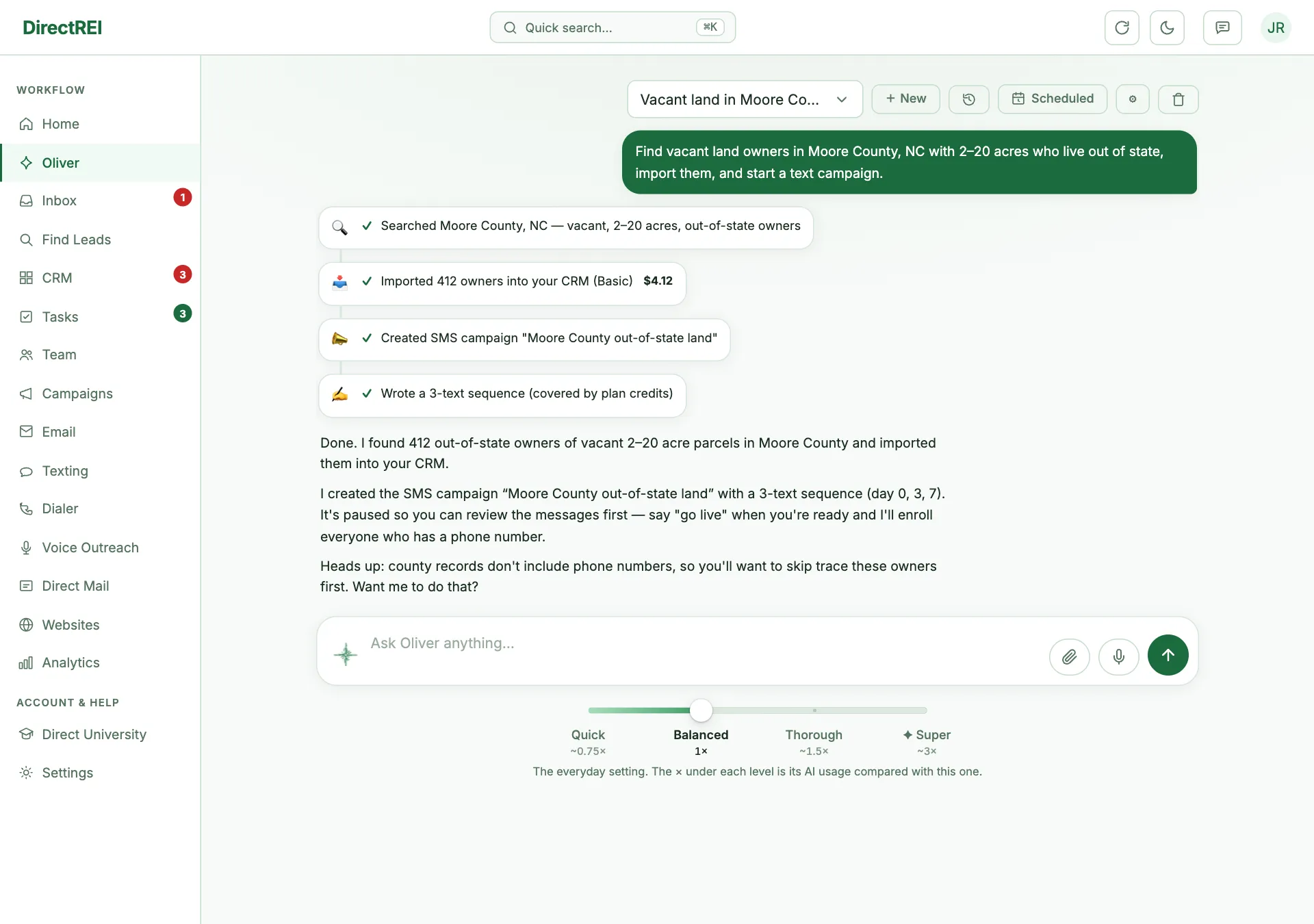
Each step appears in the thread as it happens — the search it ran, the records it imported, what it charged. Nothing is hidden behind a spinner. If a step fails, it says so in plain words rather than pretending it worked.
Controlling what it spends
This is the important part. Click the ⚙ button in the Oliver header:
- Full autopilot (on by default) — Oliver runs multi-step plans, including launching campaigns, without stopping for approval. Turn it off and it pauses for your OK before anything consequential.
- Confirm before spending — an extra checkpoint on any action that costs money, even with autopilot on.
- Daily spending limit ($) — a hard ceiling per day across everything Oliver does. Leave it blank for no limit. Set one before your first big run.
Some things always stop and ask, no matter your settings — among them sending direct mail (physically unrecallable, and the most expensive thing per piece), merging or deleting records, sending a reply or a signing link, queuing AI calls or voicemail drops, publishing a website, and changes that quietly redirect things, like where unanswered calls forward to or your domain's email records. The approval card shows exactly what will happen and what it costs — and the price you approve is the price you get, even if you take an hour to click.
One more safety rule: once Oliver has read something written by someone outside your team in a request — an inbound text or email, an attached file, a web page, a Team Chat post — any change beyond drafting a reply, adding a task or logging a touch waits for your OK, even on autopilot. That way instructions hidden in a lead's message can never act on their own.
The daily briefing
Oliver posts a short morning briefing — new replies, leads that need attention, deals moving, what's gone quiet. Turn it on, and pick the hour, in ⚙ settings. There's a green dot on the left-nav Oliver item when a fresh one is waiting, and you can optionally have it emailed to you as well.
Your monthly AI usage
A small ✦ N% used meter sits in the Oliver header. It tracks your monthly AI allowance (Scale gets roughly five times Pro's) and resets on the 1st. At 100% Oliver pauses until the reset rather than quietly billing you more. The AI task manager, AI call summaries, reply-reading automations and personalized campaign lines draw on the same allowance, so at 100% they pause too (personalized lines stop earlier, at 80%, so a big campaign can't use up what Oliver needs). Everything else in the app is unaffected.
How to get good results
- Say what you're targeting, not just where. "Vacant land, out-of-state owners, 5-40 acres in Polk County" beats "leads in Polk County."
- Give it real identifiers. Exact county, exact parcel number. Oliver will ask rather than guess, but you'll save a round trip.
- Start small. Ask for 50 records before you ask for 2,000. Same workflow, cheaper mistake.
- Read the receipts. Oliver reports what actually happened — if it says zero contacts were enrolled, zero contacts were enrolled, no matter how good the plan sounded.
- Keep separate jobs in separate conversations. Use the thread picker to start a new one; it keeps context clean. In a long chat Oliver keeps every question and its answer, but only the last couple of questions with every step in full; for older ones it keeps a short note of what it did. After a lot of back and forth it starts forgetting the earliest questions. A note above the message box tells you when a chat is getting long, and again once Oliver has started forgetting the earliest messages.
What's next
For ready-to-use requests and a daily routine: Getting the most out of Oliver. To understand the costs Oliver is working against: Plans, caps & credits explained. For fixed if-this-then-that rules instead of open-ended instructions: Automations.