A contact stage tells you where a lead is. A task tells you what someone has to do next, by when. The Tasks page is where that lives — and it is where automations put the work they create for you.
Four views
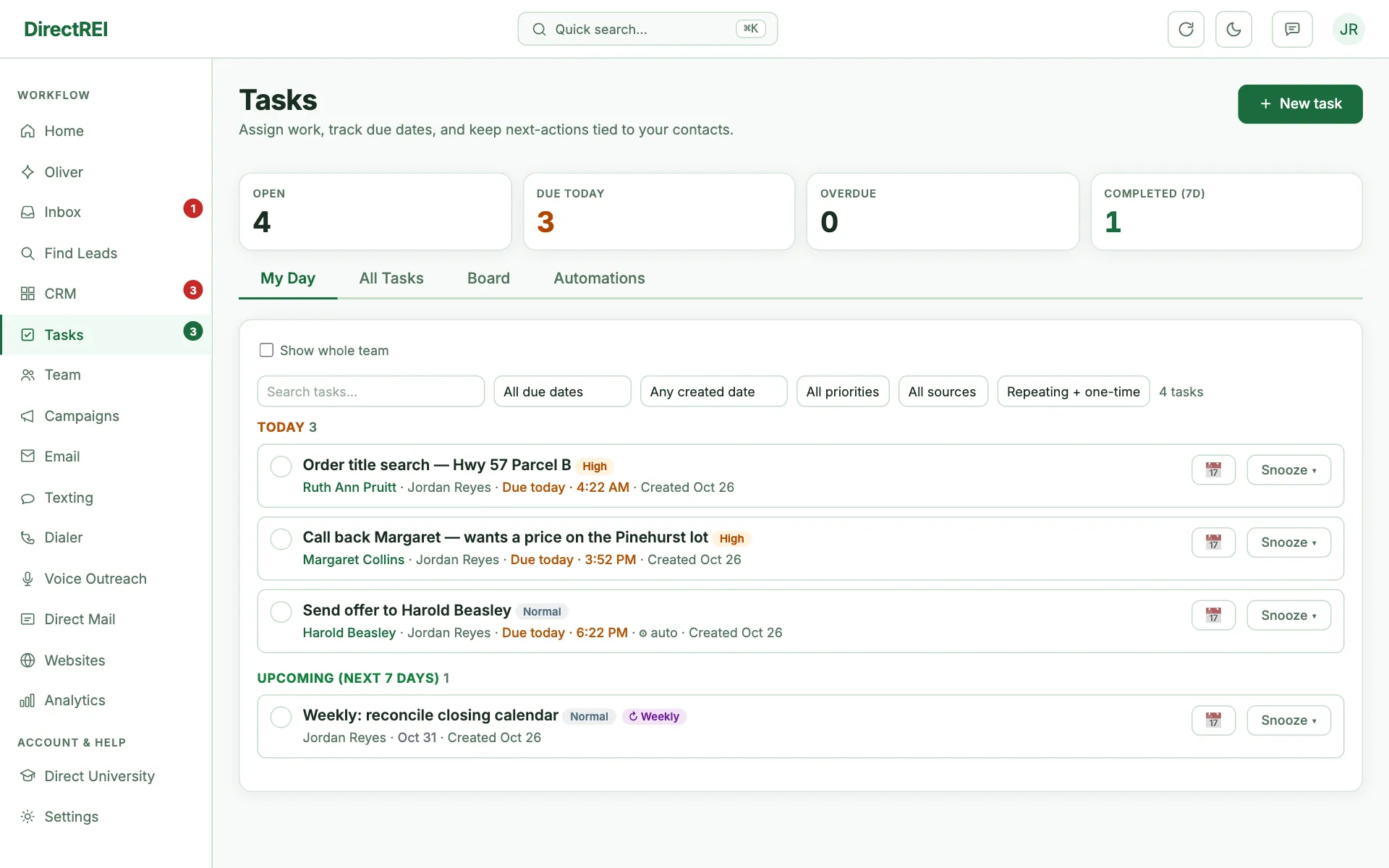
- My Day — your tasks only, grouped Overdue / Today / Upcoming. This is the screen to start the morning on. There's a toggle to widen it to the whole team.
- All Tasks — the full filterable table: by assignee, status, priority, due date and created date. Each task shows the day it was created; open a task to see exactly when and who made it. Use it to plan, not to work.
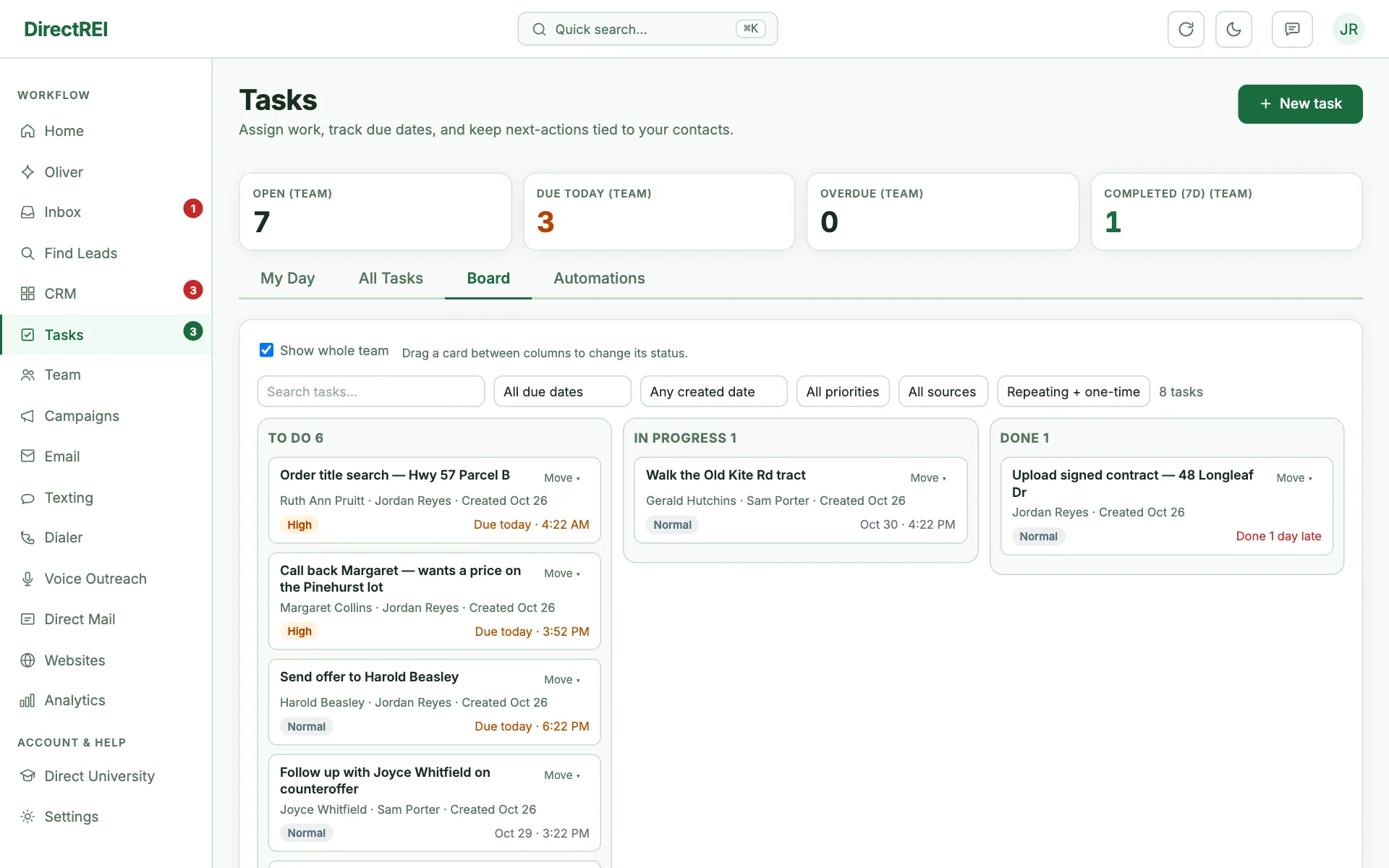
- Board — a Kanban of To do / In progress / Done. Drag a card to change its status (or use the Move ▾ menu on touch and keyboard).
- Automations — rules that create tasks for you. See Automations.
The left-nav Tasks badge counts what's due today, so you don't have to go looking.
Creating a task
Click + New task. What matters:
- Title — verb first. "Call Maria about the Heights lot" beats "Maria".
- Assignee — anyone on your team. Defaults to you.
- Email them about this task — when you assign a task to a teammate (a new task, or changing who it belongs to), a checkbox lets you email them that they have a new task. It goes to their login email from your account's connected mailbox, usually within 15 minutes, with the due date, linked contact/deal, notes and a link that opens the task. They can turn these emails off in Settings → Notifications.
- Due date, an optional time, and priority (Low / Normal / High / Urgent). The line under the date inputs tells you exactly when the reminder will go out.
- Linked contact or deal — this is the important one. A linked task opens the record in one click, and shows up as context when anyone else picks it up.
- Repeat — daily, weekly, biweekly, or monthly. Completing a recurring task spawns the next occurrence automatically (within a day).
Every task has an Activity & comments panel — use it for handoffs so the context lives with the work instead of in a chat thread nobody can find later. Tasks with comments show a 💬 chip in the lists.
Working tasks
- Complete — one click; undo is offered right after in case you mis-tapped.
- Snooze — pushes it to tomorrow morning without editing the due date by hand.
- Completed tasks record whether they landed on time, which feeds the on-time-rate KPI in Analytics.
Follow-up reminders and your calendar
Every task with a due date is also a reminder. When it comes due, the assignee gets a push notification (tap it to open the task) and an email from the account's connected mailbox. A task with a time reminds at that time; a date-only task reminds at 9 AM that day. Snoozing or moving the due date re-arms the reminder; completing the task cancels it.
- From a contact card — open the lead, then ⋯ More → ⏰ Schedule follow-up. The task is pre-filled ("Follow up with Maria", tomorrow 9 AM) with the time field ready to change. The card's Next follow-up line shows the soonest one and lets you open it or add it to your calendar.
- Add to calendar — the 📅 button on any dated task opens Google Calendar, Outlook.com, or downloads an .ics file for Apple Calendar and desktop Outlook. Timed tasks land as a 30-minute event with a 15-minute alert; date-only tasks land as an all-day event. This is a one-way copy: changing the task later doesn't move the calendar event.
- Push on your phone — reminders are one of the notification kinds you can switch on under Settings → Notifications (on iPhone, install the app first). The reminder email is on by default too — turn it off in the same place (the Email column).
How tasks get assigned
When something else creates a task for you — an automation or the AI task manager — it picks an assignee by strategy:
- Smart (affinity) — whoever already handles tasks for that contact or deal; falls back to the account owner. This is the default and usually the right answer.
- Round-robin — rotates evenly across the team.
- Owner, a specific teammate, or unassigned.
The AI task manager (optional, Pro & Scale)
On the Automations tab there's a 🤖 AI task manager card. Turned on, it reads your account on a schedule and drafts a short, prioritized task list — leads flagged for attention, replies with no open task, contacts that went quiet after being contacted — and, since September 2026, what leads actually said: the last week of inbound texts and emails, AI-call summaries and outcomes, voicemail transcripts, and callback requests.
- It does what the lead asked. "Call me Thursday at 3" becomes a task due Thursday at 3 — with the push + email reminder every dated task carries — and the reason quotes the request. "Send me the contract" becomes exactly that task. It never invents a time the lead didn't give, and a lead who said stop or not interested gets no task.
- One task per contact per day, and a contact with an open task is skipped unless something new came in from them since the last run.
- Off by default. Nothing runs until the account owner turns it on.
- Repeats daily or weekly, at a run time you choose in your account's send timezone.
- Routing rules let you send its tasks to different people by channel and lead type — "seller calls to Jane, emails round-robin" — with a fallback for anything unmatched.
- It draws on the same monthly AI allowance as Oliver. At 100% used, its runs pause until the 1st rather than billing you extra.
- Only the account owner can turn it on or change its settings.
It drafts, it never sends. Everything it produces is a task for a human.
What's next
To stop creating these by hand: Automations. To measure whether they're getting done — and who's doing them: Analytics, team numbers & KPI goals.